




Icons is a PocketSuite feature that lets you tag clients, bookings, and other records with small visual symbols that surface critical information at a glance. Instead of digging through client notes mid-appointment or during a busy check-in, your team sees the details that matter most right where they’re already looking: your calendar, your client list, and each individual record.
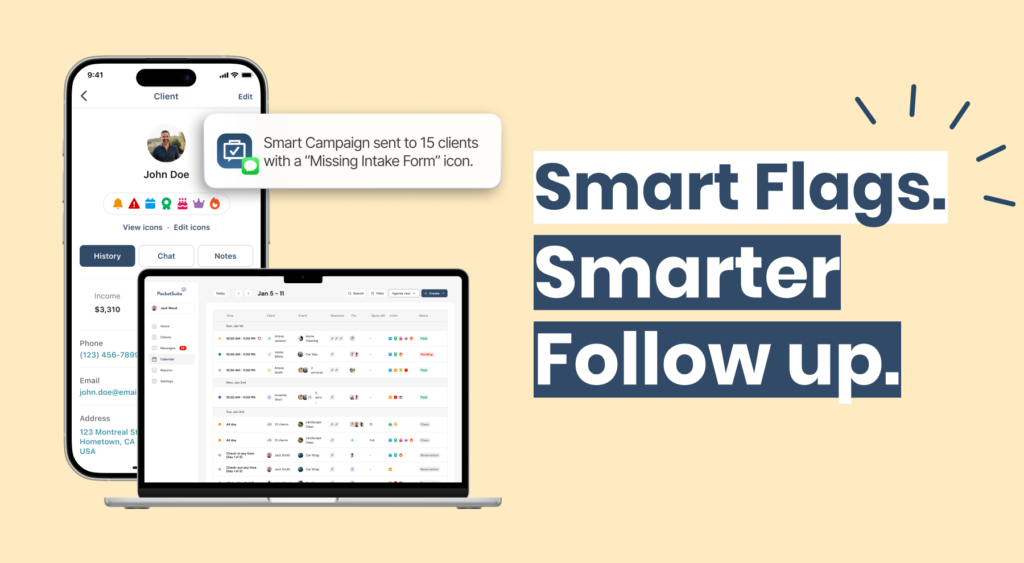
Each icon has three parts: the symbol and color you choose, the record it applies to (a client, a booking, a sub-account, and more), and an optional trigger that applies it automatically when a condition is met. A client whose intake form is incomplete, a booking with an unsigned waiver, a first-time client who hasn’t shared their preferences yet: Icons surfaces all of it without anyone having to remember to check.
Plus, PocketSuite’s automated text marketing feature, Smart Campaigns, then uses those tags to automatically send the right message to the right client at the right time. Together, they turn your client list into a hands-free marketing engine.
Before you dive in: The examples in this guide are meant to spark ideas, not prescribe a one-size-fits-all setup. A few things worth knowing as you build your icon strategy:
- Custom fields come first. Many of the triggers described here require a custom field to exist in Settings > Client Fields. If the field doesn’t exist yet, the trigger won’t fire.
- Triggered icons are automatic. Manual icons are manual. These are two separate modes in PocketSuite and they’re mutually exclusive. An icon with a trigger cannot be applied by hand, and an icon without a trigger can only be applied by hand.
- Icons and Smart Campaigns work together, but separately. Icons flag the client. The campaign sends the message. Setting up an icon doesn’t automatically activate a campaign — each needs to be configured on its own.
- Too busy to set up on your own? Our Client Automation Pack pairs you with a PocketSuite specialist who builds your icons and campaigns from scratch, tailored to your business.
Icons aren’t just a safety tool. Used across the full client lifecycle, they help you convert more leads, deliver better care, keep your best clients coming back, and re-engage the ones who’ve gone quiet.
Here’s how to put them to work at every stage.
Stage 1: Lead
Convert Inquiries Without Losing the Details
Before a client ever has your crew on their property, Icons can help your team track where a lead stands and flag anything missing before the first job is confirmed. Icons give you visibility on:
- New clients who submitted your inquiry or estimate form but never followed through with a booking
- Referrals who were added to your system by a team member after a word-of-mouth recommendation
- Prospective clients who called while your crew was on a job and never got a response
By the time your team pulls up to a property for the first time, you already know who the client is, how they found you, and what still needs to happen before the job is confirmed.
Tag, Trigger, Book: Using Icons and Smart Campaigns to Convert Clients
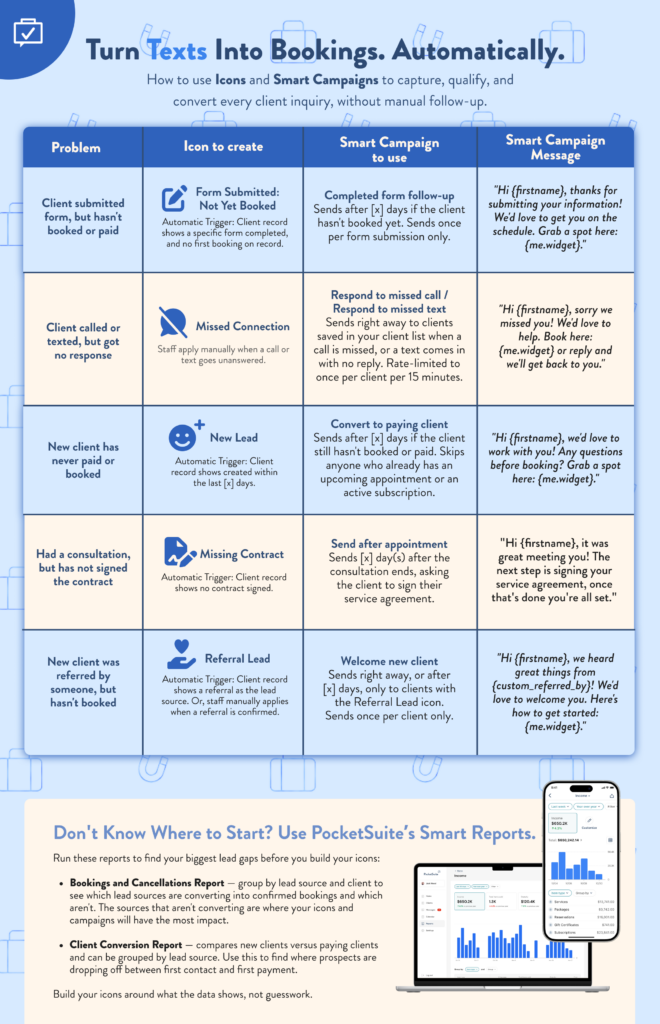

Every lead that goes quiet is a client who moved on. Icons flag the moment a prospect stalls, and Smart Campaigns reaches out automatically so nothing falls through the cracks. Read this list of Icons and Smart campaigns that you can create at the lead stage (or download the guide above!):
- Form Submitted: Not Yet Booked — When a prospective client submits your intake or inquiry form but hasn’t made a first booking, this icon appears automatically on their client record. Pair it with the Completed Form Follow-Up Smart Campaign to send a timely follow-up that turns an expression of interest into a confirmed appointment.
- Missed Connection — When a call or text goes unanswered, staff apply this icon manually. It gates the Respond to Missed Call or Respond to Missed Text Smart Campaign, which fires immediately so no inquiry goes cold while you’re with a client.
- New Lead — When a new client is added to your system but hasn’t paid or booked, this icon fires automatically. The Convert to Paying Client Smart Campaign follows up after a set number of days, automatically skipping clients who have since confirmed an appointment.
- Missing Contract — When a prospective client has had a consultation but hasn’t signed their service agreement, this icon flags the gap. The Send After Appointment Smart Campaign follows up automatically, prompting them to sign so the booking can move forward.
- Referral Lead — When a new client’s record shows a referral source, this icon fires automatically, or staff can apply it manually. It gates a warmer, more personal version of the Welcome New Client Smart Campaign so referred clients feel recognized from their very first interaction.
Plus, you can use PocketSuite’s Smart Reports to find your biggest lead gaps before you build your icons:
- Bookings and Cancellations Report — group by lead source and client to see which lead sources are converting into confirmed bookings and which aren’t. The sources that aren’t converting are where your icons and campaigns will have the most impact.
- Client Conversion Report — compares new clients versus paying clients and can be grouped by lead source. Use this to find where prospects are dropping off between first contact and first payment.
Build your icons around what the data shows, not guesswork.
Stage 2: New Client
Make Every First Visit Count
First visits set the tone for the entire client relationship. Icons give your team the context to deliver a confident, prepared welcome without scrambling through notes at the last minute.
- First-time client: System trigger on first booking. Prompts staff to walk the client through your intake process, set service expectations, and capture preferences for every appointment after.
- Intake form incomplete: Reapplied if forms haven’t been completed before the appointment. Non-negotiable before any hands-on or detailed service.
- Known sensitivities or restrictions: Custom field trigger when an allergy, sensitivity, or contraindication field is not empty. Alerts your team before the service begins, not during it.
- Preferred team member noted: “Preferred team member” field is not empty. Prevents auto-assignment to the wrong person and protects the client relationship from the first visit.
- Health or safety flag: Triggered when any relevant health, medical, or safety field is not empty. The specific fields depend on your service type, but the principle is the same: your team should never be surprised by a critical detail mid-service.
Stage 3a: Arrival
Use the Moments Before the Service Starts
Whether your business has a formal check-in or a more informal arrival, the window before a service begins is one of the most valuable moments in the client relationship. It’s when your team can confirm critical details, flag anything that needs a conversation, and turn intake insights into upsell opportunities, all before the first step of the service is taken.
- Intake update needed: Applied when a client’s last intake was completed more than six months ago or when a gap between visits suggests their details may have changed. Prompts a brief check-in at arrival rather than discovering outdated information mid-service.
- Upsell opportunity: Applied based on intake responses or prior service notes. A client whose intake flagged a specific need or interest is a natural candidate for an add-on or an upgraded service. Tag it before arrival so your team can make the offer naturally, as part of the pre-service conversation, not as a last-minute pitch.
- Anxious or first-time client: First booking trigger or intake flag. Prompts staff to slow down, explain the process, and create a calm, confident experience from the moment the client walks in.
- Room or setup flag: Applied based on intake details like physical limitations, equipment needs, or access requirements. Alerts the team member to prepare before the client arrives so setup isn’t happening in front of them.
Stage 3b: Active Client
Surface the Details That Shape Every Service
For any hands-on or appointment-based service, the in-service phase is where your most important icons earn their place. These should sit at the top of your priority order so they always appear on your calendar.
- Safety or contraindication flag: Triggered when a safety-critical field is not empty. The exact field depends on your service type, but this category of icon should always be your highest priority. Your team should see it before they open a door, sit down with a client, or start a job.
- Special instructions: Ongoing notes about preferences, routines, or requirements that shape every visit. Applied when the relevant field is not empty.
- Assigned team member: System trigger when a record is assigned to a specific staff member. Protects established client relationships in multi-team operations and prevents accidental reassignment.
- Service-specific flag: Any icon tied to a detail that changes how your team delivers the service: product preferences, equipment requirements, access instructions, or handling notes. Build these around the intake questions that matter most in your specific business.
- Unsigned waiver: Contract or liability waiver not signed. Required before any service that carries a risk or legal consideration.
Stage 3c: Checkout
Close Every Appointment With a Reason to Come Back
Checkout is one of the most underused moments in the service business client relationship. The client is present, the experience is fresh, and they’re more open to a meaningful conversation than at almost any other point in their interaction with your business. Icons help your team use that window intentionally, every time, not just when someone remembers to ask.
- Follow-up or next step recommended: Applied manually during or after the service when a team member identifies something worth continuing, a follow-up appointment, a complementary service, or a product recommendation. Checkout is the moment to surface that conversation while the service’s value is still fresh.
- Package on last session: Triggered when a client’s package reaches its final booking. Prompts the team to initiate a renewal conversation at checkout. The best time to resell a package is when the client just experienced exactly what they’re buying.
- Product used during service: Applied when a product, tool, or resource was used during the service that the client can purchase or continue using at home. Surface the icon so your team makes the retail recommendation while the result is visible.
- Rebook prompt: Applied to clients on a regular service cadence. Flag it so the front desk or team member confirms the next appointment before the client leaves. Clients who rebook at checkout are significantly less likely to lapse than those who leave with an open calendar.
- Incident or service note: Applied manually when something unexpected happened during the service that warrants a direct conversation. Ensure it happens face to face at checkout, not in a follow-up message or a review.
- Referral ask: Applied manually to clients who had a strong experience. The best time to ask for a referral is when a client is happy and about to leave. An icon ensures your team makes that ask consistently, not just occasionally.
Stage 4: Nurture
Build the Relationships That Drive Retention and Referrals
Your best clients deserve more than consistent service. Icons help you identify the relationships worth investing in and give your team the context to make every interaction feel personal, even when a client is seeing someone new.
- VIP client: Applied manually to top spenders, long-term regulars, or clients who consistently refer. Prompts elevated attention and opens the door to exclusive outreach.
- Referral source: Applied manually when a client sends new business your way. Flags the relationship for nurture outreach and helps you track where your best clients are coming from.
- Follow-up recommended: Applied manually after a service when a team member identifies something worth revisiting. A note in a field is easy to miss. An icon on the record is not.
- Package or subscription active: Triggered when a client has an active package or recurring subscription. Keeps your team aware of what the client has purchased and prompts a rebooking conversation before sessions run out.
- Birthday: “Client birthday” date field trigger fires in the days leading up to the client’s birthday. A timely, personal message from a service business is unexpected and memorable. It signals that the relationship matters beyond the transaction, which is the foundation of long-term loyalty.
- Client anniversary: Triggered on the anniversary of the client’s first booking with your business. Acknowledges the length of the relationship and gives your team a genuine, warm reason to reach out between appointments. Automate it so every long-term client receives it, not just the ones someone happens to remember.
Stage 5: Lapsed
Catch Clients Before They’re Gone for Good
A lapsed client isn’t a lost one, but the window to re-engage closes faster than most business owners expect. Icons help you identify them early. Smart Campaigns helps you reach them before they’ve moved on.
- Lapsed client: Applied manually to clients who haven’t booked within your defined window, typically 60 to 90 days depending on your service type. The trigger for your outreach campaign.
- Outstanding balance: Applied when a balance remains unpaid after a visit. Prevents rebooking and flags the account for a payment conversation before the relationship goes any further.
- Expired document or record: Triggered when a time-sensitive field, a certification, a consent form, or a required document, lapses during a gap between visits. Common for clients who’ve been absent for several months.
Stage 6: Comeback
Re-Onboard Returning Clients the Right Way
When a lapsed client books again, treat it like a new client visit. A lot can change in the months they’ve been away: preferences shift, health details change, records expire, and your team may not remember the full history. Icons make the re-onboarding seamless without making it feel clinical.
- Expired document or record: Re-triggered automatically if a time-sensitive field has lapsed during the absence. Catches returning clients who haven’t updated records before the appointment is confirmed.
- Intake form incomplete: Reapplied to prompt a fresh intake conversation on return. Returning clients sometimes share more than they did as new clients.
- Health or safety flag: Review and update on return. Conditions, medications, and relevant details can all change over a six-month absence.
- Special instructions: Reconfirm preferences on return. Clients appreciate that you remembered, and icons make it easy to pick up where you left off without anyone having to dig through notes.
See Icons in Action
Want to see how it all comes together before you dive in? We hosted a live walkthrough of the Icons feature, covering real setup examples, trigger logic, and use cases across different service types. Watch the recording to see exactly how other pros are building their icon strategy, and get a head start on your own.
Ready to put it all together?
Icons and Smart Campaigns are two of the most powerful tools in PocketSuite, and they’re even better when they work together. The icons organize your clients. The campaigns reach them. And once it’s set up, the whole system runs in the background while you focus on your work. If you want help getting it right from day one, our Client Automation Pack pairs you with a dedicated PocketSuite specialist who builds your Icons and Smart Campaigns from scratch, tailored to your business. No blank screens, no guesswork, no adding another project to your plate.
Not on PocketSuite yet? Start your 30-Day FREE Trial today!