




Icons is a PocketSuite feature that lets you tag pets and pet parents, bookings, and other records with small visual symbols that surface critical information at a glance. Instead of digging through pet notes mid-appointment or during a busy check-in, your team sees the details that matter most right where they’re already looking: your calendar, your pet family list, and each individual record.
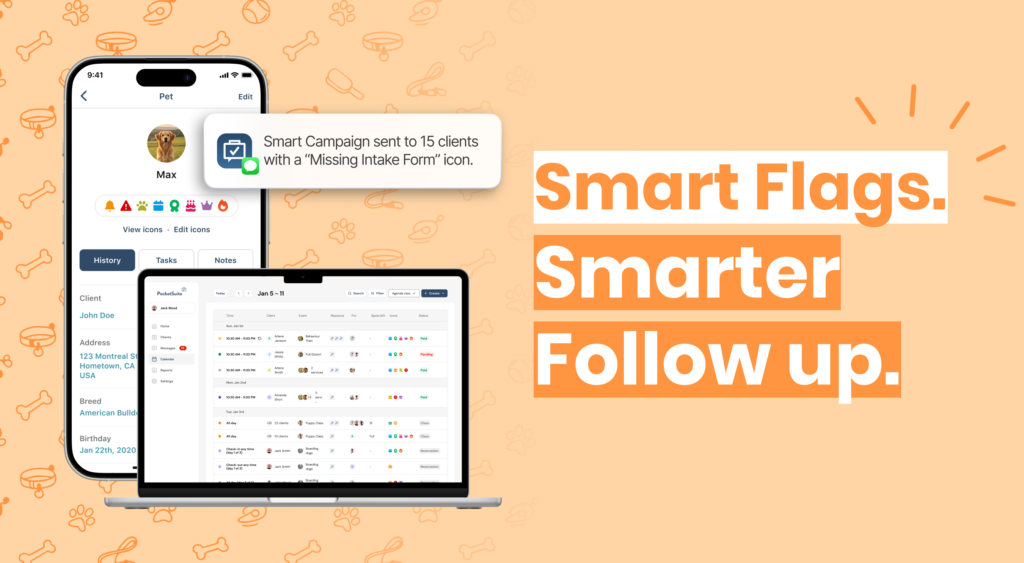
Each icon has three parts: the symbol and color you choose, the record it applies to (a pet, a booking, a sub-account, and more), and an optional trigger that applies it automatically when a condition is met. A pet whose vaccine record has expired, a booking with an unsigned waiver, a first-time visitor who hasn’t completed intake: Icons surfaces all of it without anyone having to remember to check.
Plus, PocketSuite’s automated text marketing feature, Smart Campaigns, then uses those tags to automatically send the right message to the right pet parent at the right time. Together, they turn your pet family list into a hands-free marketing engine.
Pro Tip: PocketSuite already has default icons set up in the Pet Resort Edition, Dog Training Edition, and Pet Salon Edition of the app, based on the most common use cases for your industry. All you need to do is add your preferred record and triggers.
Before you dive in: The examples in this guide are meant to spark ideas, not prescribe a one-size-fits-all setup. A few things worth knowing as you build your icon strategy:
- Custom fields come first. Many of the triggers described here require a custom field to exist in Settings > Client Fields. If the field doesn’t exist yet, the trigger won’t fire.
- Triggered icons are automatic. Manual icons are manual. These are two separate modes in PocketSuite and they’re mutually exclusive. An icon with a trigger cannot be applied by hand, and an icon without a trigger can only be applied by hand.
- Icons and Smart Campaigns work together, but separately. Icons flag the client. The campaign sends the message. Setting up an icon doesn’t automatically activate a campaign — each needs to be configured on its own.
- Too busy to set up on your own? Our Client Automation Pack pairs you with a PocketSuite specialist who builds your icons and campaigns from scratch, tailored to your business.
Icons aren’t just a safety tool. Used across the full client lifecycle, they help you convert more leads, deliver better care, keep your best pet families coming back, and re-engage the ones who’ve gone quiet.
Here’s how to put them to work at every stage.
Stage 1: Lead
Turn Inquiries Into Bookings
Before a pet owner ever steps through your door, Icons can help your team track where a lead stands and flag anything missing before the first visit is confirmed. Icons give you visibility on:
- New clients who filled out your boarding registration form but never made a booking
- Referrals who were added to your system by a team member after a phone call
- Prospective clients who called while you were in the middle of a drop-off.
By the time a pet family walks through your door for the first time, your team already knows who they are, how they found you, and what still needs to happen before the visit is confirmed.
Tag, Trigger, Book: Using Icons and Smart Campaigns to Convert Pet Family Leads
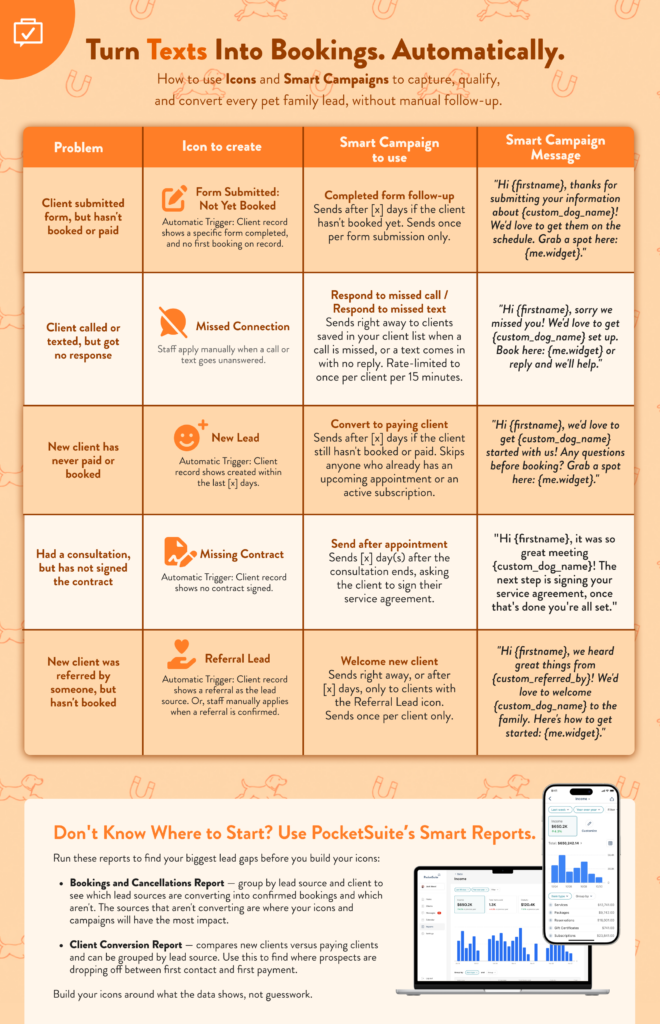

Every inquiry that goes unanswered is a pet family that found someone else. Icons let you flag the exact moment a lead gets stuck, and Smart Campaigns acts on it automatically so no one slips through while you’re running the kennel. Read this list of Icons and Smart campaigns that you can create at the lead stage (or download the guide above!):
- Form Submitted: Not Yet Booked — When a pet family fills out your intake or registration form but hasn’t made a first booking, this icon appears automatically on their client record. Pair it with the Completed Form Follow-Up Smart Campaign to send a timely nudge that gets them on the schedule without a single manual follow-up.
- Missed Connection — When a call or text goes unanswered, staff apply this icon manually. It gates the Respond to Missed Call or Respond to Missed Text Smart Campaign, which fires immediately so no inquiry goes cold.
- New Lead — When a new client is added to your system but hasn’t paid or booked, this icon fires automatically. Pair it with the Convert to Paying Client Smart Campaign to follow up after a set number of days, skipping anyone who already has an upcoming appointment.
- Missing Contract — When a prospective client has had a consultation but hasn’t signed their service agreement, this icon flags the gap. The Send After Appointment Smart Campaign follows up automatically, prompting them to sign so nothing is holding up the booking.
- Referral Lead — When a new client’s record shows a referral source, this icon fires automatically. It gates the Welcome New Client Smart Campaign, sending a warmer, more personal message than your standard welcome sequence.
Plus, you can use PocketSuite’s Smart Reports to find your biggest lead gaps before you build your icons:
- Bookings and Cancellations Report — group by lead source and client to see which lead sources are converting into confirmed bookings and which aren’t. The sources that aren’t converting are where your icons and campaigns will have the most impact.
- Client Conversion Report — compares new clients versus paying clients and can be grouped by lead source. Use this to find where prospects are dropping off between first contact and first payment.
Build your icons around what the data shows, not guesswork.
Stage 2: New Client
Set Every First Visit Up for Success
First visits set the tone for the entire relationship. Icons help your team deliver a confident, prepared welcome, no scrambling through notes at the desk.
- First stay / First lesson / First groom: System trigger on first booking. Alerts staff to spend extra time on intake, walk the owner through your process, and note any surprises for future reference.
- Vaccination record is expiring: Date field trigger on vaccine upload. Catches records that are close to expiring so you can request updated documents before the first visit is confirmed.
- Vaccination record is expired: Same trigger, past-due. Blocks group play and boarding check-in until records are current.
- Health condition: Triggered when a health condition custom field is not empty. Flags the team to review before handling.
- Puppy: Age or breed field trigger. Prompts extra care, modified group settings, and a different energy in the interaction.
- Senior: Same logic for older animals. Alerts staff to adjust handling, play intensity, and monitoring frequency.
- Photo consent: Triggered when photo consent field is empty. Ensures you never post a client’s pet without permission.
Stage 3a: Check-In
Turn Arrival Into an Opportunity
Check-in isn’t just an administrative moment. It’s the first touchpoint of every visit, and icons make it the most informed one. Before a pet parent hands over the leash, your team already knows what to offer, what to flag, and what to say.
- Upsell opportunity: Applied manually or triggered by intake form fields. A dog whose intake notes frozen Kongs as a favorite is a natural candidate for an add-on enrichment package. Tag it at check-in and let your team make the offer before the parent leaves.
- Anxious pet family: “Anxious owner” custom field is not empty. Flags families who need extra reassurance, especially on a first stay. Prompt staff to offer mid-stay photo updates and set expectations before drop-off.
- Special diet or allergy add-on: “Allergies” or “Feeding instructions” field is not empty. At check-in, surface this as a conversation starter, not just a care note. A client with a dog on a raw diet or with a protein allergy is a natural fit for a premium meal plan upsell.
- Sunday brunch or enrichment eligible: Applied based on intake responses about food preferences or enrichment interests. Lets staff pitch specialty experiences, like a Sunday brunch service or a sensory play session, at the moment the client is most engaged.
- First stay: Trigger the extra-attention protocol and prompt staff to walk the family through what the next 24 to 48 hours will look like. A confident check-in sets the tone for the entire relationship.
Stage 3b: Active Client / In-Stay
Deliver the Right Care Every Time
For boarding, training, and grooming, the in-stay phase is where safety-critical icons matter most. These should sit at the top of your priority order so they always appear on the calendar.
- Aggressive toward humans: Custom field or intake trigger. Non-negotiable front-of-list priority for any staff member handling the animal.
- Aggressive toward other dogs: Same trigger type. Determines group play eligibility and handling approach immediately.
- Reactive: Behavioral notes trigger. Broader than aggression, covers trigger-based responses to stimuli like bikes, other dogs, or loud noise.
- Escape risk / jumper: Custom field trigger. Gate checks, leash protocols, and yard assessments all depend on this flag being visible.
- Bite risk during grooming: Grooming-specific trigger. Groomer adjusts muzzle use, positioning, and session pacing.
- Anxious: Behavioral notes trigger. Prompts extra check-ins during boarding, slower handling during grooming, and modified training approaches. Pair with the anxious pet family icon to ensure photos and updates are sent proactively.
- Requires medication: “Medications” field is not empty. Ensures no dose is missed during a stay or daycare session.
- Has allergies: “Allergies” field is not empty. Critical for treat selection, food service, and product use.
- Special diet: “Feeding instructions” field is not empty. Staff pulls the right food and portions without guessing.
- Recovering from injury: “Injury notes” field is not empty. Restricts activity level, modifies handling, and prevents re-injury.
- Sensitive skin: Grooming-specific. Groomer selects appropriate products and adjusts drying technique.
- Matted coat: Coat condition field trigger. Groomer preps dematting tools and adjusts time estimate before the dog is on the table.
- Solo / no group play: Custom field or behavioral assessment trigger. Routes the dog immediately on arrival.
- Group play approved: Confirms the dog can go directly into group without a separate evaluation.
- Incident report filed: Applied manually when an incident occurs during a stay. Critical flag for the checkout conversation. Ensures staff raises the incident directly with the pet parent rather than leaving them to discover it in the report card for the first time.
Stage 3c: Check-Out
Close Every Visit With a Reason to Come Back
Checkout is one of the highest-value moments in the client relationship. The pet parent is present, engaged, and emotionally invested in what just happened. Icons help your team turn that moment into a rebooking, an upsell, or a referral, without it feeling like a sales pitch.
- Incident report flag: Applied during the stay when something needs to be discussed at pickup. Staff sees the flag at checkout and initiates the conversation proactively. A pet parent who hears about an incident from you, calmly and in person, responds very differently to one who reads about it in a report card afterward.
- Package on last session: Triggered when a client’s package reaches its final booking. Prompts staff to offer a renewal at checkout while the experience is fresh. The best time to resell a package is when the client is happy and the dog is right there.
- Product used during stay: Applied when a grooming product, enrichment toy, or treat was used during the visit that the pet family can purchase. A dog that was obsessed with a particular chew toy during boarding or responded well to a specific shampoo is a natural retail conversation at pickup.
- Rebook prompt: Applied manually or triggered at the end of a stay. Flags the booking for a rebooking conversation before the client leaves. Especially valuable for holiday boarding, where next season’s spots fill fast.
- Upsell at checkout: Applied based on in-stay observations or intake insights. A dog that thrived in group play might be a fit for a training package. One that had separation anxiety might benefit from a midday check-in add-on. Surface the conversation at the moment of highest engagement.
Stage 4: Nurture
Strengthen the Relationships That Keep Clients Coming Back
Your best clients deserve more than consistent service. Icons help you identify the relationships worth investing in and give your team the context to make every interaction feel personal, long after the visit is over.
- VIP: Applied manually to top clients, long-term regulars, or high-value accounts. Prompts elevated attention and opens the door to exclusive outreach.
- Birthday: “Pet birthday” date field trigger fires on the pet’s birthday. Send a personalized message, offer a birthday bath or treat package, or simply let the family know you remembered. Small gestures build long-term loyalty.
- Relationship anniversary: Triggered on the anniversary of the client’s first booking with your business. Celebrates the number of years you’ve been caring for their pet and gives your team a warm, genuine reason to reach out. A “We’ve been caring for Biscuit for three years this week” message lands very differently than a generic promo.
- Referral source: Applied manually when a client sends new business your way. Flags the relationship for nurture outreach and tracks which clients are actively growing your business.
- Special instructions: Ongoing notes about preferences, routines, or quirks that shape every visit. A client who always wants a post-groom bandana or a boarder whose dog needs a specific bedtime routine.
Stage 5: Lapsed
Catch Clients Before They’re Gone for Good
A lapsed client isn’t a lost one, but the window to re-engage closes faster than most business owners expect. Icons help you spot them early so your outreach lands before they’ve moved on entirely.
- Outstanding balance: Applied when a balance remains unpaid after a visit. Prevents rebooking and flags the account for follow-up.
- Waiver / forms missing: Reapplied when updated forms are needed. Common after a long gap between visits when vaccine records or waivers have expired.
Stage 6: Comeback
Re-Onboard Returning Clients the Right Way
When a lapsed client books again, treat it like a new client visit. Vaccine records may be expired, behavioral notes may be outdated, and your team may not remember the history. Icons make the re-onboarding seamless.
- Vaccination record is expired: Re-triggered automatically if the date field is past due. Catches returning clients who haven’t updated records during their absence.
- Health condition: Review and update on return. A lot can change in six months.
- Special instructions: Reconfirm preferences on return. Clients appreciate that you remembered, and icons make it easy to pick up where you left off.
See Icons in Action
Want to see how it all comes together before you dive in? We hosted a live walkthrough of the Icons feature, covering real setup examples, trigger logic, and use cases across different service types. Watch the recording to see exactly how other pros are building their icon strategy, and get a head start on your own.
Ready to put it all together?
Icons and Smart Campaigns are two of the most powerful tools in PocketSuite, and they’re even better when they work together. The icons organize your clients. The campaigns reach them. And once it’s set up, the whole system runs in the background while you focus on your work. If you want help getting it right from day one, our Client Automation Pack pairs you with a dedicated PocketSuite specialist who builds your Icons and Smart Campaigns from scratch, tailored to your business. No blank screens, no guesswork, no adding another project to your plate.
Not on PocketSuite yet? Start your 30-Day FREE Trial today!